
Restore an Old Family Photo With AI: What to Fix and What to Check
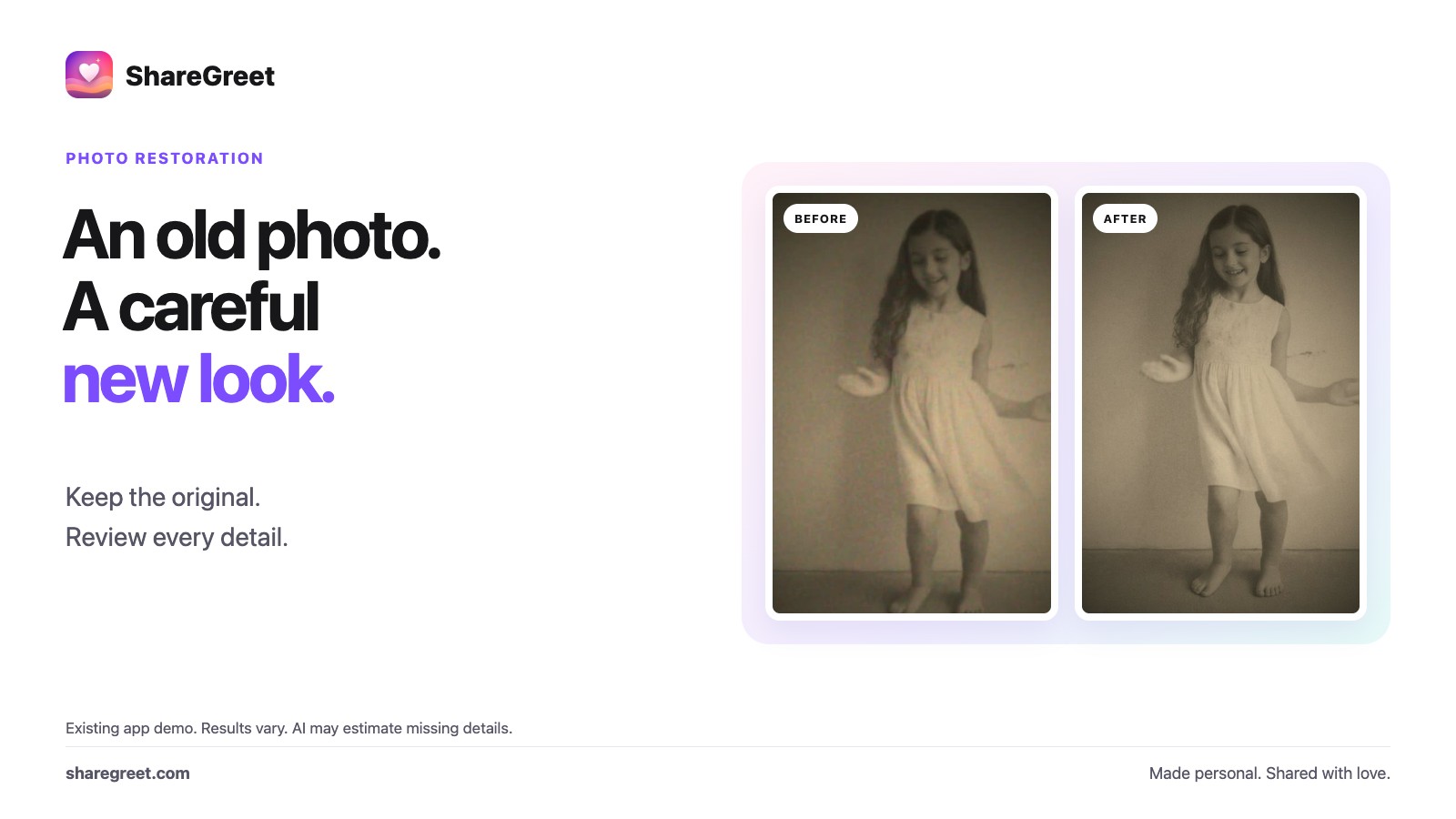
A faded family print can be worth more than a folder of new pictures. AI restoration can make it easier to see, but it is not a way to prove what every missing detail originally looked like. Start with a good copy, make one careful restoration, and keep the original beside the result.
Start with the best copy you have
- Scan the print if you can. Otherwise photograph it flat in even light, without flash glare.
- Include the whole face and the edges of the photograph. Crop away the table around it, not somebody's hair or hands.
- Use the original file rather than a screenshot of a picture that has already been forwarded several times.
- Make a separate copy to edit. Never replace the only scan of an important family photograph.
Restore it in ShareGreet
- Open ShareGreet and attach the photo in the guide, or choose Fix and edit photos from Create.
- Ask for one clear change: Restore this faded photograph and keep the people looking like themselves.
- For a black-and-white photo, add colour only if you want an interpretation of the colours. A black-and-white restoration is a different choice.
- Review the cost, then create the result. A photo fix uses 1 credit; free photo-story tries do not cover it.
- Open the result from My pictures and compare it with your original before sending it.
Compare the details that matter
Look at the eyes, mouth, hairline, hands, jewellery and any writing. A sharper result is not automatically a more faithful one. If a family member looks different, keep the original and try a simpler request rather than accepting the edit just because it looks cleaner.
Colourisation is an interpretation, not a historical record. The app cannot know the true colour of a dress from a black-and-white print. Label a colourised picture as an AI-assisted version if you share it with a family archive.
When to use 4K
If you want a larger file, a separate HD 4K enhancement costs 3 credits. It is optional and is not included in the 1-credit restoration. Check the resulting pixel dimensions and your printer's requirements before paying for a print. Read the 4K picture guide.
Keep family photos private
Only upload a photo you have permission to use. Avoid sharing a public link to a sensitive family image. Chats used to improve the guide are kept for up to 90 days and uploaded guide photos for up to 30 days, as explained in the privacy policy. Saved creations are separate and can be deleted from your account.
Give the restored photo a little context
A name, a place and an approximate year can matter more than extra sharpness. Add a caption such as Grandma outside her first home, around 1975, but only if you know it is true. Put the original and the restored version together in a free photo flipbook, so relatives can enjoy both.
Open ShareGreet and start with one photograph. For removing an object or combining people from separate photos, use the appropriate tool in our photo editing guide.
Frequently asked questions
Can AI recover the exact original detail?
No. It can estimate missing detail. Compare the result with your original, especially faces, hands and writing, and do not treat it as historical evidence.
What does restoring a photo cost?
A photo fix costs 1 credit. A separate, optional HD 4K enhancement costs 3 credits. The app shows the cost before you create.
Do I have to colourise a black-and-white photo?
No. You can restore it in black and white. Colourisation is an optional interpretation, not a record of the original colours.
Where is the restored picture saved?
In My pictures on your Profile. Keep your original scan separately and review the result before sharing.